 |
For 32 Bit / 64 Bit OS - Dot Net Framework 3.5
Download
*
|
|
TradeTiger :- Installation Procedure |
System Requirements for TradeTiger:
Minimum
Recommended
Power
User
Operating
System
Windows 2000 / XP
Windows XP / Vista / 7
Windows XP / Vista / 7
Processor
Intel Pentium 4 Processor.
Intel Core 2 Duo, 2.0 GHz or faster
Intel Core 2 Q6600 Quad-Core, 2.4 GHz or
faster
Disk
Space Required
40 MB
40 MB
40 MB
RAM
512 MB
1 GB
2 GB
Internet
Connection
DSL or Cable Modem - 64 kbps.
DSL or Cable Modem - 512 kbps.(For Single TradeTiger
Application).
DSL, cable modem and Broadband.
Browser
Microsoft Internet Explorer 6.0.
Microsoft Internet Explorer 6.0.
Microsoft Internet Explorer
6.0.
Step 1: Download and Install DotNet Framework 3.5 :
For 32 Bit / 64 Bit OS - Dot Net Framework 3.5
Download
*
Step 2: Download
TradeTiger
setup:
The settings are done and you are ready to
use TradeTiger! TradeTiger :- Updation
Procedure 1. Download Updated Predefined Scriplist files
from here and
unzip it(ie., Right click on it and press "Extract here"). A Folder called
"PredefinedScripList" will be extracted. Copy the folder and
save it to your installation path (Eg: C:\Sharekhan\TradeTiger\ or C:\Program
Files\Sharekhan\TradeTiger\). 2. Download TradeTiger Help File Updated on
27/08/2009 from here and
save it to your installation path (Eg: C:\Sharekhan\TradeTiger\ or
C:\Program Files\Sharekhan\TradeTiger\).
TradeTiger :- Server List
Updation 1.Normal Clients Download the DLL and save
it in your installation path (Eg: C:\Program Files\Sharekhan\TradeTiger or
C:\Sharekhan\TradeTiger\ ). Download
Here 2.Online PowerBroker/HNI Clients Download
the DLL and save it in your installation path (Eg: C:\Program
Files\Sharekhan\TradeTiger or C:\Sharekhan\TradeTiger\). Download
Here 3.Offline PowerBroker Clients Download the
DLL and save it in your installation path (Eg: C:\Program
Files\Sharekhan\TradeTiger or C:\Sharekhan\TradeTiger\). Download
Here

32 Bit TradeTiger
Setup Download
64
Bit TradeTiger Setup Download
Follow the instructions on the screen, just click on "next"
button on all screens.
Done! You are ready to start using
TradeTiger
Final Step : Procedure to Start
the TradeTiger
Exe
Double click on TradeTiger icon on the desktop. This icon is created
automatically during the installation.
You
will be now presented with a "Login" screen.
When you open TradeTiger for the first
time, you will have to set a server to connect to.
Click on the
"Proxy" tab on the login screen.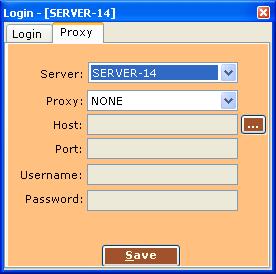
Select ANY one server 1
/ 2 / 3 / 4 / 5 / 6 /... from the list in the "Server" drop down and Proxy as "NONE" .Keep
the rest unchanged and hit the "save" button. As soon as a connection to the
server is established, you will be redirected to the login screen. Now you can
enter your username and password to login into the
system.
Note: You may have to set the "proxy", "host" and "port" only if you
are behind the firewall in a LAN environment.
Ports 19345, 19346, 20345
and 20346 on the proxy server has to be opened.
For
accessing the system through proxy please contact your helpdesk and they will be
able to help you out.