February 16, 2024
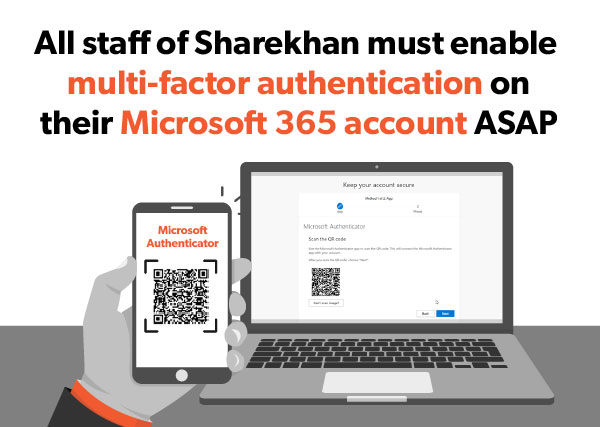
All staff of the Sharekhan group must enable multi-factor authentication (MFA) for their Microsoft 365 account on their laptop and/or mobile as soon as possible to increase security of and prevent unauthorised access to the account. Once you enable MFA on your Microsoft 365 account, you will be able to access your account and all applications in it by using a two-factor authentication (2FA) process.
MFA is mandatory and must be enabled on all Microsoft 365 accounts in the organisation before the end of February 23, 2024, otherwise it will be enforced. Enabling MFA on your Microsoft 365 account takes less than two minutes, so please do not delay, register for MFA now.
Click the following link to know how to enable MFA in less than 2 minutes:
https://www.sharekhan.com/MediaGalary/Newsletter/How-to-configure-MFA-as-MS-Authenticator-for-M365.pdf
You may also watch this cool GIF below to know how to enable MFA in no time.
How to enable MFA
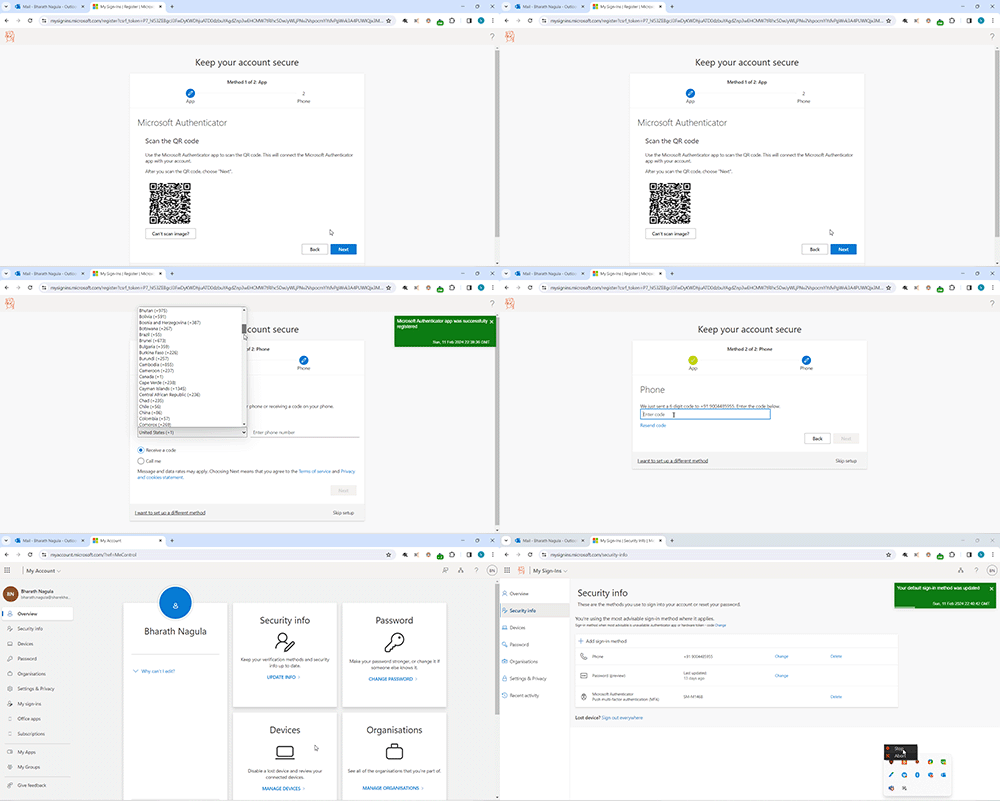
Step-by-step guide to enabling MFA
- Log into Microsoft 365
- Go to https://portal.office.com/ or https://outlook.office.com/
- Sign in with your work username and password
- 2. Access “My Account”
- Select your profile icon under “My Account” from the dropdown menu.
- “Open Security Info” page
- On the left navigation, select “Security & Privacy” under “Security Info”
- Click “Add Method”
- Under “Extra Security Verification”, click “Add a Method”
- Choose “App Verification”
- On “Add a Method” page, select "I want to use the app"
- Install Microsoft Authenticator App on your mobile
- On your mobile device, install the Microsoft Authenticator app
- Scan QR Code
- On the configuration page, scan the provided QR code using the app
- Approve “Notification”
- Set/Change the default “Sign-in method” as “Authenticator app or hardware token – code”
When logging into Microsoft 365, approve the notification sent to the Microsoft Authenticator app to pass 2FA.
Why MFA is important?
MFA provides an extra layer of protection by requiring two forms of authentication when you sign into your Microsoft 365 account to access company data or resource: your password plus an authentication code sent to your mobile device or e-mail. This prevents hackers from accessing your account even if they have your password.
All users of Microsoft 365 in Sharekhan must register for MFA without fail. Please act at the earliest to avoid any disruption or inability to access your account.
Good to know
- Currently, all users of Microsoft 365 can access Outlook, webmail and Microsoft 365 applications without MFA.
- Once you enable your MFA, you will require 2FA to access webmail, and Microsoft 365 applications and services.
- All Microsoft 365 applications, including Outlook, Teams, SharePoint and Viva Engage, will prompt a one-time MFA registration when you first sign in to register your laptop or mobile.
- If you have any issues setting up MFA, please contact the Helpdesk or raise a ticket with the team.
Apna Microsoft 365 account protect kar, ASAP MFA enable kar, Sharekhan kar.
| Published by Team Internal Communications |  |
| This newsletter is for internal circulation only. It may not be published, reproduced or quoted in part or in whole, nor may it be published on social media without prior consent. The content is strictly copyright and reproduction of the whole or part of it in any form is prohibited without written permission from the Internal Communications department of Sharekhan. | |
| Join us on |  |
 |
 |
 |
 |
 |